
Service Orders
Service Orders are additional service items users can order when booking a room, such as F&B services, IT equipments or any other services that can be provided.
How employees make an Order
Booking
When employee books a meeting, if Service Ordering is enabled, she can book service items at the same time:
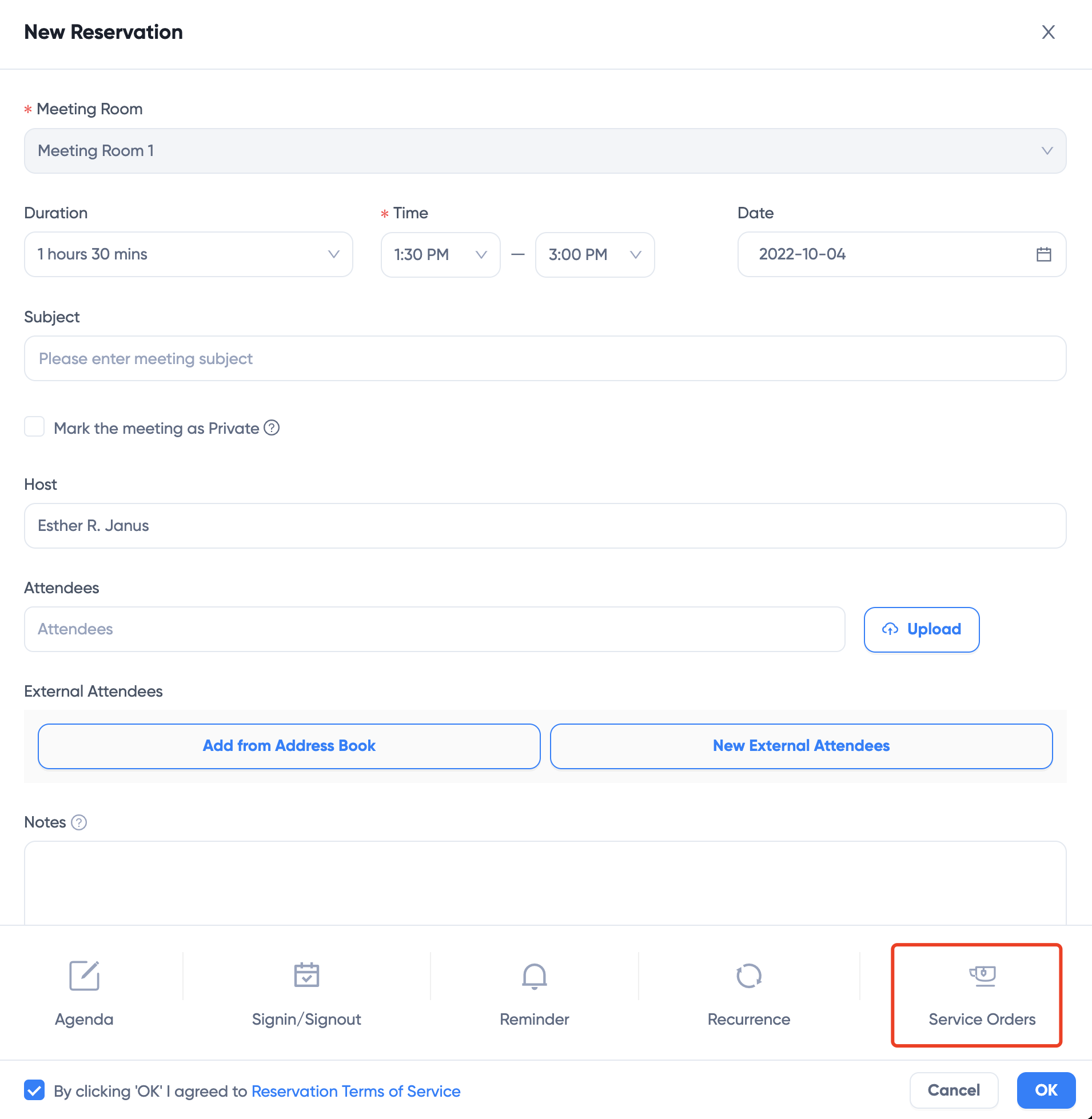
Click New Service Order to add service items to the booking:

Select service item and set quantities and then click OK
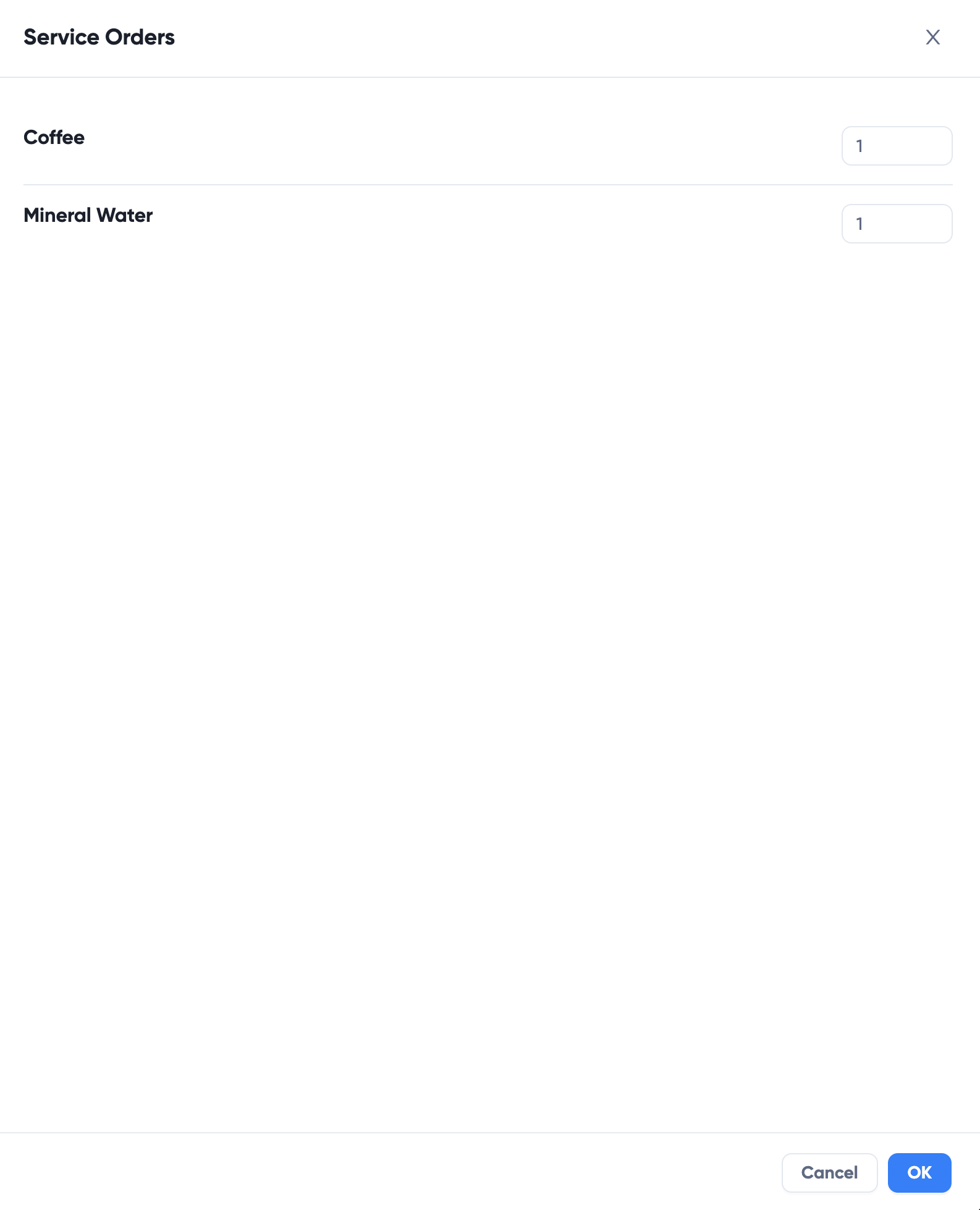
After meeting is booked, a Service Order is created.
Notifications to Admin
When a service order is booked, a notification is sent to Admin. You can customize whether to send notification and which role to send the notification to.
Click Rooms > Settings > Notifications:
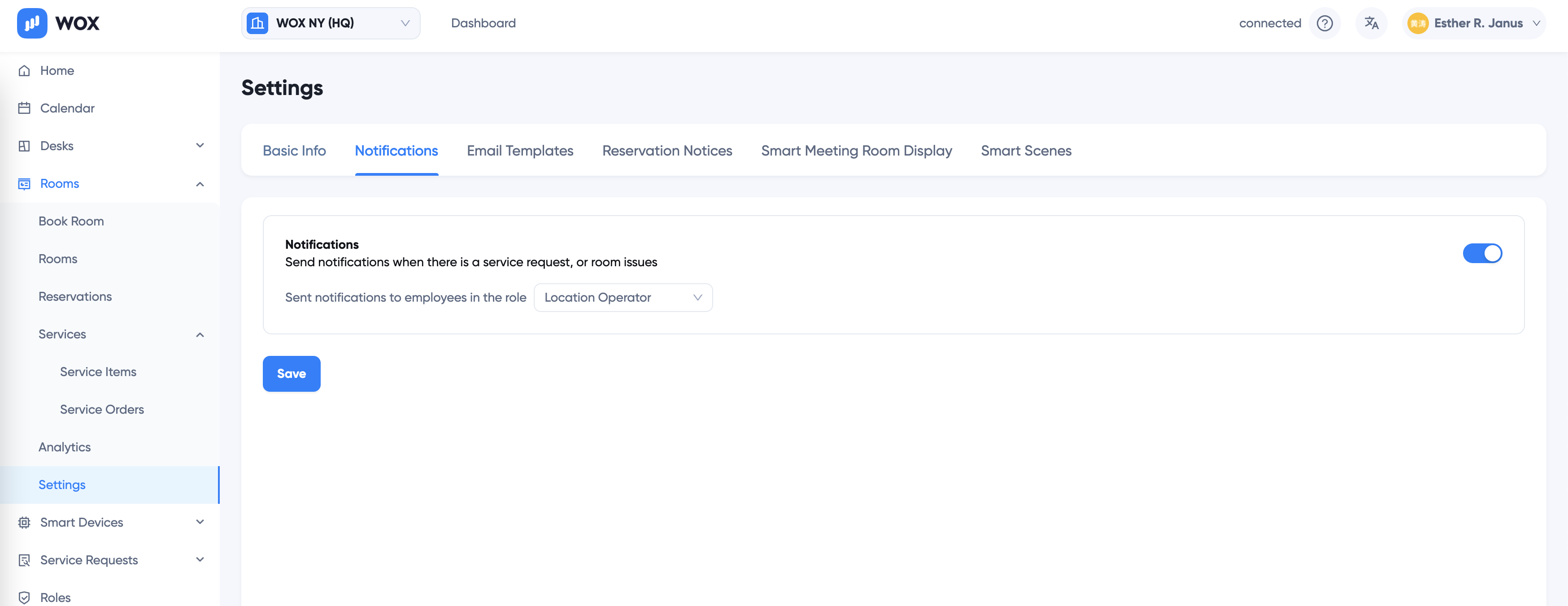
Click Save
:::note
All users with the selected role will receive notifications. You can create a custom role for notification if needed.
:::
Process Service Orders
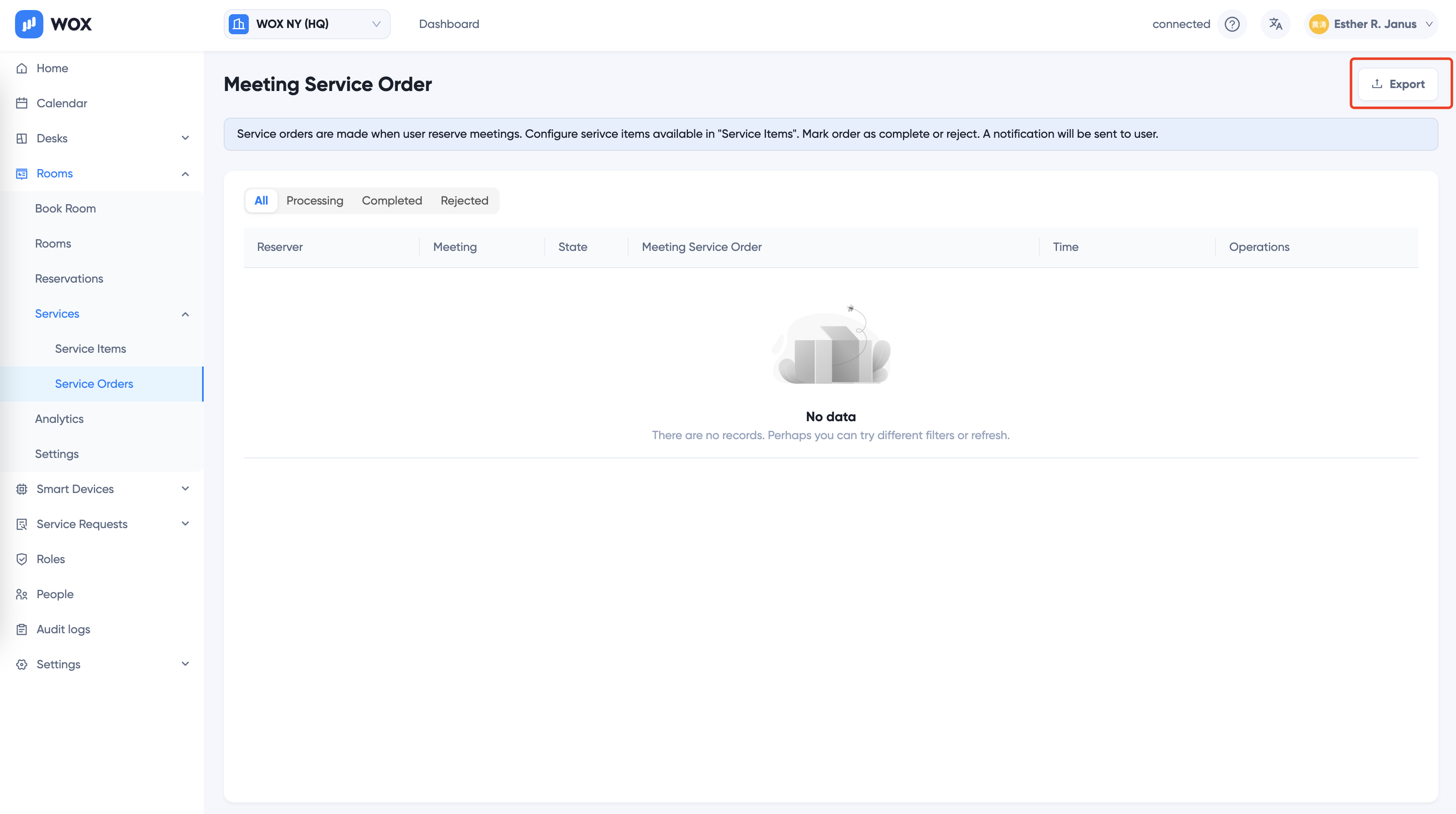
Administrators can view all pending and processed orders, and accept or cancel service orders. To process service orders, go to Rooms > Services > Service Orders
Select All, Processing, Completed, Rejected status to view only orders with the status.
To complete or reject a processing service order, click the dropdown and select the action:
Export Service Orders
Click Export button to export orders.
Edit service items
Service Items are the items available for ordering. Administrators have the permissions to edit service items.
Click Rooms > Services > Service Items to add, delete and modify Service Items.
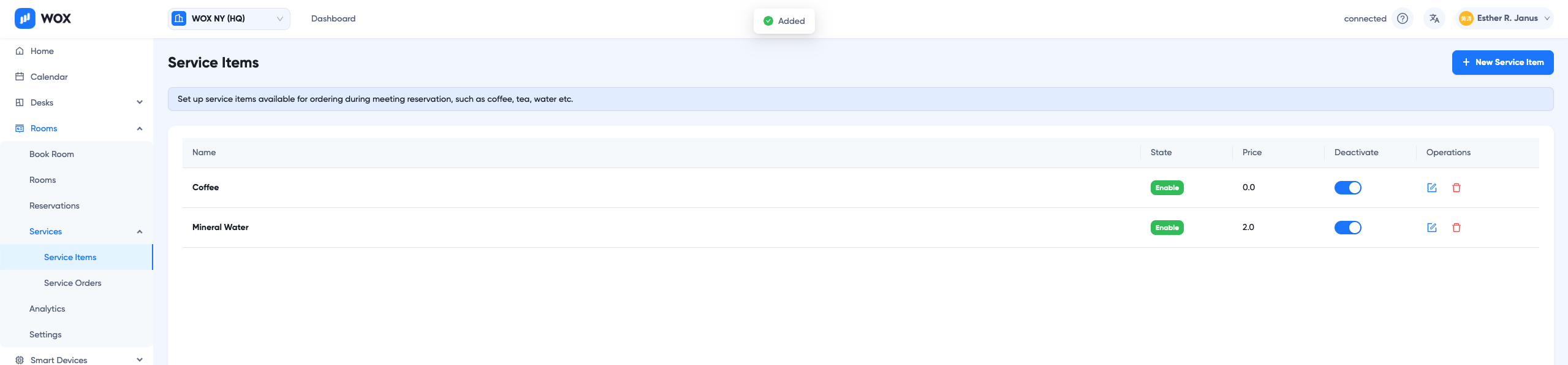
Click Deactivate switch to turn off service items for ordering. It won't affect existing orders.